


Description
Download TinEye Reverse Image Search – Fast, Free, Secure Image‑Matching Tool
Overview
TinEye Reverse Image Search is a lightweight Firefox add‑on that lets you locate exact copies of any picture with a single right‑click. Developed by the team behind the popular TinEye service, the extension injects a new entry into the browser’s context menu, so you can send the selected image directly to TinEye’s massive index. The results appear in a background tab, showing every match, the source URLs, image dimensions, file size, and even a direct link to higher‑resolution versions when they exist. Because it focuses on exact duplicates, TinEye Reverse Image Search is perfect for content creators, journalists, and anyone who needs to verify the provenance of an image, protect intellectual property, or simply find a sharper version of a photo. While it won’t surface visually similar pictures, its speed, privacy‑first design, and built‑in sharing options (Twitter, Facebook, email) make it a valuable addition to any web‑research workflow.
Key Features
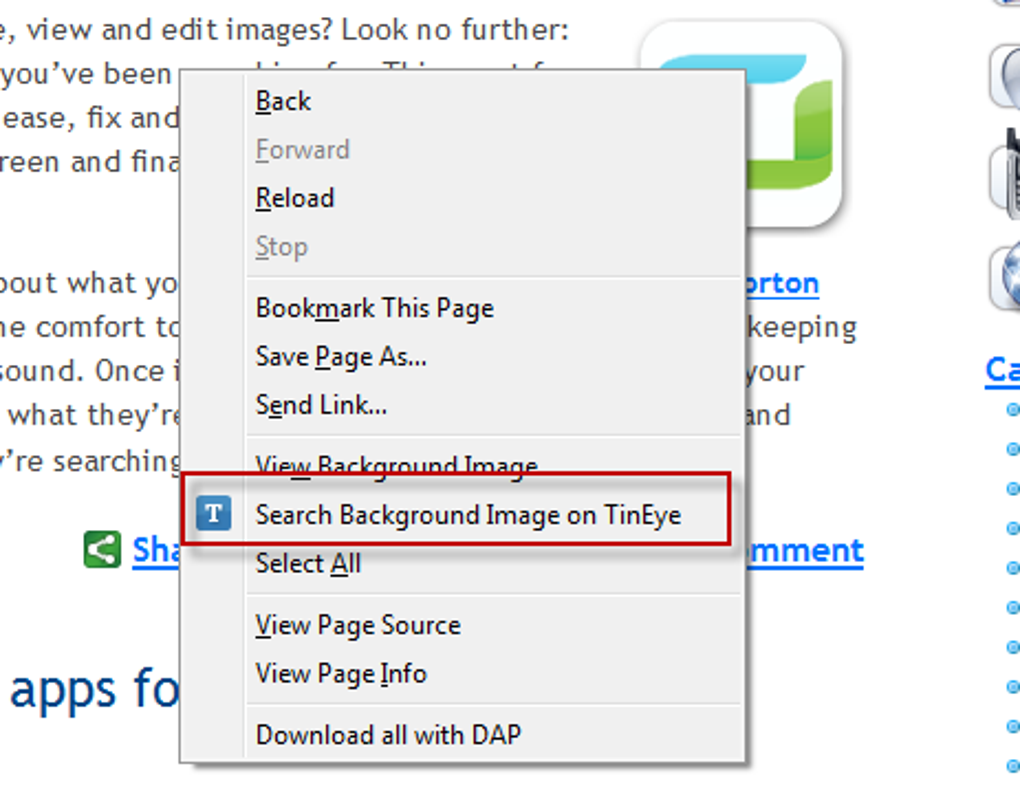
- One‑click reverse search: Right‑click any image on a webpage and instantly launch a TinEye lookup.
- Exact‑match detection: Returns only identical files, guaranteeing that you see the original source and any exact copies.
- Background results tab: Search results open in a new tab that stays in the background, keeping your current browsing flow uninterrupted.
- Detailed match information: Each result displays source URL, image dimensions, file size, and thumbnail preview.
- Higher‑resolution finder: When a larger version exists, TinEye highlights it, letting you download the best quality available.
- Social sharing shortcuts: Share search results instantly via Twitter, Facebook, or email with built‑in buttons.
- Save & compare options: Bookmark found images or compare them side‑by‑side directly from the results page.
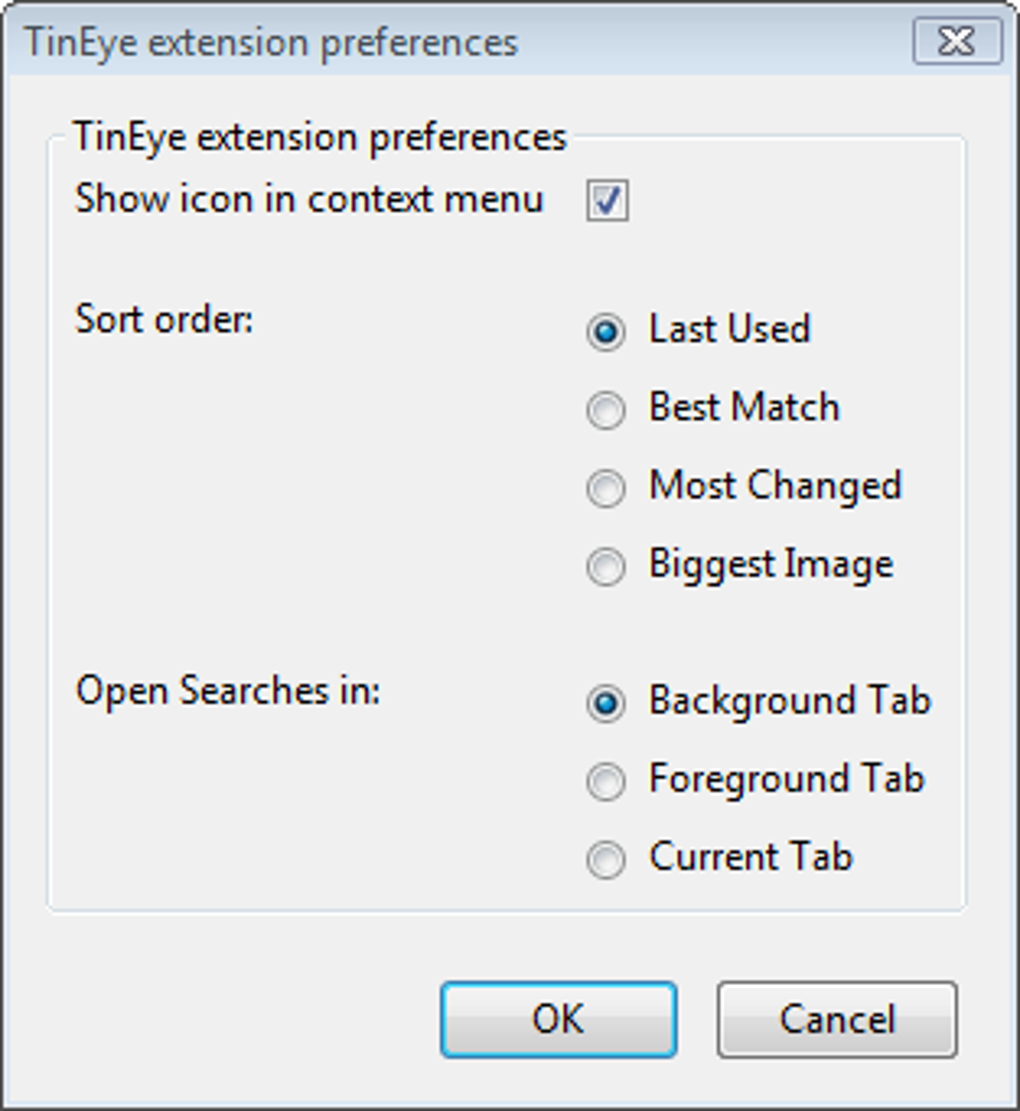
- Simple configuration panel: Choose whether results open in the foreground or background, set default image size filters, and toggle telemetry.
- Privacy‑focused: No personal data is stored; only the image URL is sent to TinEye’s secure servers for matching.
- Free and regularly updated: The add‑on is free to download and receives frequent updates to keep up with TinEye’s expanding index.
Installation & Usage Instructions
Getting TinEye Reverse Image Search up and running is straightforward. Follow these steps for a smooth setup:
- Visit the Mozilla Add‑ons store: Open Firefox and navigate to the official TinEye Reverse Image Search page.
- Click “Add to Firefox”: A prompt will appear asking for permission to install the extension. Review the permissions (access to browsing data for image URLs) and confirm.
- Restart Firefox (optional): While most installations activate immediately, a quick browser restart ensures the context‑menu entry appears reliably.
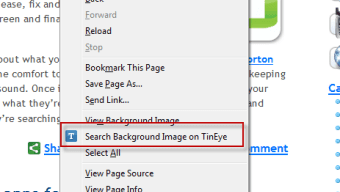
- Right‑click an image: When you encounter an image you want to verify, right‑click directly on it (or on its surrounding area). A new menu option titled “Search image with TinEye” will be visible.
- View results: Selecting the option opens a new background tab (or foreground tab if you changed the setting). The TinEye interface lists all exact matches, ordered by relevance and showing technical details.
- Interact with matches: Click a result to visit the source page, use the “Download higher resolution” button if available, or share the findings via the built‑in social icons.
- Configure the add‑on: Access the extension’s options by clicking the puzzle‑piece icon in the toolbar, then “Preferences.” Here you can switch between opening results in the foreground/background, enable or disable telemetry, and set a default image size filter.
Because TinEye only returns exact duplicates, the tool works best for copyright checks, plagiarism detection, and locating the original host of a photo. If you need to discover visually similar images, consider using TinEye’s web interface or alternative tools that support fuzzy matching.
Compatibility, System Requirements, and Platform Support
TinEye Reverse Image Search is built specifically for the Firefox browser, which runs on all major desktop operating systems. The add‑on leverages Firefox’s WebExtension API, ensuring consistent performance across platforms.
- Windows: Compatible with Windows 7, 8, 8.1, and 10 (both 32‑bit and 64‑bit). Requires Firefox version 78 or newer.
- macOS: Works on macOS 10.12 (Sierra) and later. Ensure you are running a recent Firefox build for optimal stability.
- Linux: Fully supported on popular distributions such as Ubuntu, Fedora, and Debian. The add‑on follows the same version requirements as the Windows/macOS builds.
- Firefox Quantum & ESR: The extension is compatible with Firefox Quantum (v57+) and the Extended Support Release (ESR) channel, making it suitable for enterprise environments.
While TinEye offers mobile apps for iOS and Android, the Reverse Image Search add‑on is limited to desktop browsers. Mobile users can still access the TinEye website directly or use the native app for reverse image lookups on the go.
Performance-wise, the add‑on consumes minimal RAM (typically under 30 MB) and adds negligible CPU load during searches, as all heavy‑lifting occurs on TinEye’s cloud servers. Regular updates ensure compatibility with the latest Firefox releases and security patches.
Pros & Cons
Pros
- Instant, one‑click access to TinEye’s extensive image index.
- Free to download and use, with no hidden fees.
- Accurate exact‑match results, ideal for copyright verification.
- Background tab opening keeps your workflow uninterrupted.
- Built‑in sharing tools simplify collaboration.
- Lightweight and fast, with low system resource usage.
- Regular updates keep compatibility and security current.
- Privacy‑focused: only the image URL is transmitted.
Cons
- Only finds exact duplicates; cannot locate visually similar images.
- Limited to Firefox; no native Chrome or Edge version.
- Relies on an internet connection; offline searches aren’t possible.
- Search speed depends on TinEye server load and your network latency.
- Advanced filtering options (e.g., date range) are unavailable in the add‑on.
Frequently Asked Questions
Can TinEye Reverse Image Search find higher‑resolution versions of my image?
Yes. When TinEye’s index contains a larger version of the exact image, the results page highlights it with a “Download higher resolution” link, allowing you to obtain the best quality available.
Is the add‑on safe for corporate environments?
The extension only sends the image URL to TinEye’s secure servers; no personal data or browsing history is transmitted. It also supports Firefox ESR, making it suitable for enterprises that require long‑term support and stability.
What should I do if I need to search for similar, but not identical, images?
TinEye Reverse Image Search focuses on exact matches. For visual similarity, use TinEye’s web interface (which includes a “similar images” option) or third‑party services like Google Images or Microsoft’s Visual Search.
Does the add‑on work on mobile Firefox for Android?
No. The current version is designed for desktop Firefox. Mobile users can access the TinEye website directly or download the dedicated iOS/Android app for reverse image lookups.
How often is the TinEye index updated?
TinEye continuously crawls the web and adds new images to its index multiple times per day, ensuring that recent uploads are searchable within minutes of being discovered.
Final Verdict & Call to Action
Overall, TinEye Reverse Image Search delivers exactly what its name promises: a fast, reliable, and free way to locate exact copies of any picture directly from Firefox. Its seamless integration, clear results layout, and privacy‑first approach make it an essential tool for content creators, journalists, designers, and anyone concerned about image attribution. While the lack of similar‑image detection limits its use cases, the focused feature set ensures that when you need to confirm the source or find a higher‑resolution version, the add‑on does the job without fuss.
Ready to protect your visual assets and streamline your research workflow? Download TinEye Reverse Image Search now and start finding exact image matches with a single right‑click.
Guides & Tutorials for TinEye Reverse Image Search
How to install TinEye Reverse Image Search
- Click the Preview / Download button above.
- Once redirected, accept the terms and click Install.
- Wait for the TinEye Reverse Image Search download to finish on your device.
How to use TinEye Reverse Image Search
This software is primarily used for its core features described above. Open the app after installation to explore its capabilities.
User Reviews for TinEye Reverse Image Search 0
No reviews found





